
User tips and Problem solution topics.

This is default featured slide 1 title

Go to Blogger edit html and find these sentences.Now replace these sentences with your own descriptions.This theme is Bloggerized by Lasantha Bandara - Premiumbloggertemplates.com.

This is default featured slide 2 title

Go to Blogger edit html and find these sentences.Now replace these sentences with your own descriptions.This theme is Bloggerized by Lasantha Bandara - Premiumbloggertemplates.com.

This is default featured slide 3 title

Go to Blogger edit html and find these sentences.Now replace these sentences with your own descriptions.This theme is Bloggerized by Lasantha Bandara - Premiumbloggertemplates.com.

Computer Hardware Tips

Go to Blogger edit html and find these sentences.Now replace these sentences with your own descriptions.This theme is Bloggerized by Lasantha Bandara - Premiumbloggertemplates.com.

Computer Tips

How to Remove Sortcut Virus Quickly

Showing posts with label spreadsheet. Show all posts

Tuesday, September 22, 2015

Calculating in Excel


Now for a tip about using Microsoft Excel. Excel is a spreadsheet program that you can use to create simple databases and to calculate formulas.  The software has obvious applications for accountants but what could teachers use it for? 
In this Technology Tip we’re going to try doing a simple calculation in Excel.
1)      Open up Excel by clicking on the desktop icon or finding it on the START menu.  I'm afraid today's tip will be meaningless for you if you don't have access to this program.  To the right is a sample of the icon that you're looking for.
2)      Type the following information just as it appears below.  Make sure that the data is in separate cells on the spreadsheet.  For example “Apples” should be typed into cell A2 and the number “4” should be typed into cell B2
3)      Now for our first formula.  Select cell B5 by clicking in it.  A dark black rectangle will appear on it (just like the one on B5 above).
4)      In the formula bar type the following:  =sum(B2+B3+B4) 
 
5)      When you hit the Enter key the answer to the formula should appear in cell B5 “18”
6)     
The cool part about the formulas in excel is that they are dynamic, meaning they change instantly.  For example, change the number of bananas to 4 and the total should automatically change from 18 to 20.

The Geography of Excel

Microsoft Excel is a spreadsheet program.  So what’s a spreadsheet?  For anyone with an old fashioned accounting background you might know a spreadsheet as being a large piece of paper called a ledger that you use to track income and expenses.  In more modern computer terms a spreadsheet is better defined as:  software for entering, editing, manipulating and printing structured, tabular information, such as accounting ledger sheets .  For a teacher excel can be a pretty powerful tool for quickly sorting, calculating and analyzing data, making charts and graphs and creating simple data bases.
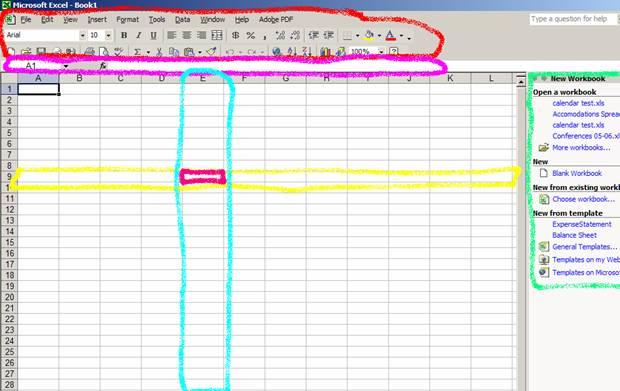
In this technology tip we just want to introduce you to the first screen you see when you open excel: 
The Geography of Excel

Below you will find the different areas of the screen in excel.  Click on the picture to enlarge it.
The Menu Bar and Tool Bar should look familiar from any other Microsoft program.  The formula bar is unique to Excel and it gives you a place to enter mathematical formulas.  The task pane is a place where special features are displayed. 
The main part of the screen is taken up by the “worksheet” which is made up of columns and rows.  Where a column meets a row is called a cell.  Every cell (or box on the worksheet) has an address.  Anyone who has ever played Battleship can understand how cells get their addresses.  Column E is outlined in light blue and row 9 is outlined in yellow.  Where they cross is the cell with the address “E9”  This becomes particularly important later on when we write formulas.
One more thing about the geography of excel.  Whenever you open a new excel spread sheet you actually are looking at 3 worksheets.  If you go to the bottom left hand corner of the screen you will see there are actually three “tabs” there, each one representing a different spreadsheet:
Just click on "Sheet2" or "Sheet3" to view those worksheets.
Here's a quick video that explains how to select cells and navigate around a spreadsheet:


PRACTICE ACTIVITY   Open up a blank excel spreadsheet and try doing the following: 
1)  See if you can find the following cells on the worksheet:  A1,  E9,  Z4, and HV1278.
2)  Try typing into a cell and then erasing what you typed.
3)  Try clicking between different sheets using the tabs in the bottom left.